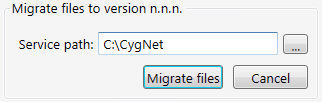
Click Migrate files to update local service configuration files to current version. With each release of CygNet new keywords will be added, existing keywords may change, and obsolete keywords will be removed. This action updates the local configuration files with the correct keywords and values for the current CygNet Software release.
To migrate local configuration files
Resolving Conflicts when Migrating Files
When migrating local configuration files, the Config File Manager searches all directories and subdirectories for *.cfg files in alphabetical order. The utility may find files of the same name from different folders, for example, in a Backup folder and in a Services folder. To resolve conflicts when this occurs, a Conflict Resolver dialog displays the conflicting file names. The user has the option of choosing individual files, or clicking Select All on Left or Select All on Right. Once the choices have been made, clicking Accept will update the selected files.
Click the following image to see a sample Conflict Resolver dialog:

|
|
|

